Date: 27th January, 2025
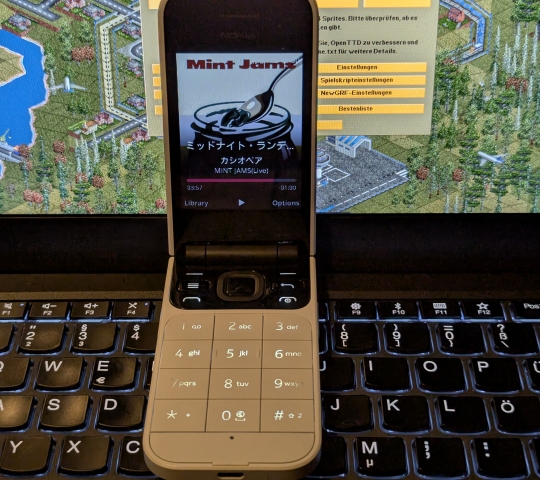
Recently I've gotten a chance to acquire an old, used Nokia 2720 Flip, featuring KaiOS version 2.5.2.2, build 30.00.17.05, and I wanted to try and see whether it could pass for me as a new (or a long-term at least) daily driver. For that, I wanted access to at least one instant messaging app to be able to check important messages while on the go and respond to them if necessary. Turns out, WhatsApp had decided to discontinue support of its app on KaiOS. Facebook isn't an option either, since it's not going to be as useful, thus I turned to apps developed and maintained by unofficial developers.
A couple years ago I tried out Nokia 6300 4G KaiOS feature phone but I ended up giving it up due to its lackluster performance and poor camera. Not to mention, it had a widespread bug of unregistered/ghost keypad clicks, making it harder to type out messages. What I've gotten out of that experience too though was the ability to install custom apps. Undoubtedly it required some fooling around but eventually I was able to install Telegram and while lagging, it performed fine for the time and for such a device.
Now that I've gotten my hands back on such a device I wanted to see whether I could do it all again - upload some music, install a few apps to kill the time if necessary incl. Telegram and maybe get rid of the bloatware that is present by default. Unfortunately the methods that worked three years ago couldn't be reproduced immediately. Thus, a dozen or so hours were spent searching, trying, failing and more searching before I was finally able to install OmniSD - an app enabling installation of third-party applications right on the device.
DISCLAIMER: Proceed at your own risk. I am not to be held responsible for loss of your device functionality in case of unforeseen errors or wrong usage of this article's information.
First of all - without properly patching boot.img of the device I was not able to find a way in whatsoever. No adb command, remote runtime setting adjustment helped me towards the installation and that's all due to the last update available for this device (also installed on my device). KaiOS version 3 introduced new things on its own and thus the procedure might be different as well, but for 2.5.2.2 it is quite different. No instructions exist within a single page.
Alas we first need to do just that. Make sure that you've got android-tools (adb) installed and updated and that you've also got python3. Clone this directory into your folder of choice and install all the necessary dependencies. Also, make sure that you've got Docker installed. Clone 8k Boot Patcher repository by Luxferre. Then, locate an EDL/Firehose loader needed for your phone - 2720 Flip in my case. Download it to the edl folder. If your device is not listed in the EDL/Firehose loader database you might want to find a different solution.
Checklist:
Enable debug mode on your phone by typing on your keypad, from home screen:
#*#*debug*#*#
(a. k. a.) #*#*33284*#*#
When the little bug thing appears in the status bar, connect your phone to your computer and check whether it's seen by adb. Then reboot your phone using adb into EDL mode. Your phone might or might not flash a KaiOS logo before turning pitch black again. Wait a few seconds and your phone will be in EDL mode. From Terminal:
adb devices
adb reboot edl
This part now is going to be somewhat tricky and weird to carry out. Basically what happens is that after every edl command the phone still gets recognised as being put into EDL mode, but refuses to accept further commands. In that case after every command you will need to press on the end call/power on-off button briefly before typing in the reboot command again. It might not be the case with your device, but I found this to be with my device. Like I said - weird.
After your device gets put into EDL mode, you will need to install the programmer into the phone. Then, we will pull the GPT partition table just to make sure that the boot partition is available and we will pull its image from the device. In these commands don't forget to replace appropriate file names and directories with your own directories.
// cd into edl directory
python3 edl.py -loader 2720.mbn // install the programmer, then reboot the phone
adb reboot edl // briefly after power-on send this command
python3 edl.py -loader 2720.mbn -printgpt // pull the gpt table, reboot the phone again
// at this point before rebooting the phone you should check if boot partition is in place
adb reboot edl // briefly after reboot
python3 edl.py -loader 2720.mbn -r boot boot.img // boot.img, reboot the phone again
adb reboot edl // briefly after reboot
If no errors have emerged, in your edl directory a new file called boot.img will appear. If throughout this procedure errors have appeared, please consult Installation procedure section of QC EDL tools repository or README.md. The pulled file we will now patch using 8k Boot Patcher.
In Terminal change your directory to the one with the cloned Patcher repo files and build the docker program, then use it to patch the boot.img we just pulled from our devices.
// cd into 8kbootpatcher directory
docker build -t 8kbootpatcher .
docker run --rm -it -v /home/User/KaiOS/edl:/image 8kbootpatcher
Reminder: change the directories to the appropriate ones on your end. This should patch boot.img and copy the old one into boot-orig.img. If anything goes wrong, you will be able to re-flash it back onto your device.
Erase the old boot partition, reboot your phone into EDL mode. Flash the newly patched image file onto your device and then reboot it, this time not into EDL mode, but to the system.
// cd back into edl directory
python3 edl.py -loader 2720.mbn -e boot // erase old boot partition, reboot the phone
adb reboot edl // briefly after reboot
python3 edl.py -loader 2720.mbn -w boot boot.img // flash the new boot.img, reboot the phone
At this point phone should fully boot back into the operating system, ready to take in new apps. Just to be sure, check whether SELinux enforce mode on your KaiOS device is set to permissive and then get ready for the next step.
adb shell
getenforce
setenforce 1
exit
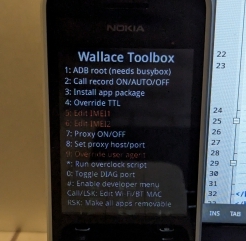
By this point any instructions that are to be found online are still relevant. To install apps or otherwise customize your phone, please refer to these pages:
Sources:
https://github.com/plugnburn/edl
https://edl.bananahackers.net/
https://groups.google.com/g/bananahackers/c/21ssvVmT5tk?pli=1
https://www.reddit.com/r/KaiOS/comments/hzz0ed/how_to_edit_replace_remove_stock_apps_without/